
If you spend your day inside a web browser, tab switching is likely one of your most repeated actions. Despite Apple's world-class multi-touch trackpad, macOS still lacks a simple, built-in gesture for switching between browser tabs.
Users coming from ChromeOS or Windows may be surprised to find that macOS has no built-in trackpad gesture for switching browser tabs. If browser tabs are a big part of your workflow, this missing gesture quickly becomes noticeable. In this guide, we'll explain why the feature is missing, evaluate the most common ways to add it, and compare BetterTouchTool with TabSwipe for intuitive browser tab switching on macOS.
For a seamless, out-of-the-box experience, a dedicated native utility like TabSwipe is the ideal solution. Built specifically for this workflow, TabSwipe is pre-tuned to bring buttery-smooth, continuous three-finger swipes to macOS immediately without any configuration headache.
Instead of mapping single keyboard shortcuts, TabSwipe acts as a continuous gesture controller. You hold three fingers on your trackpad and slide; as you move your fingers, TabSwipe tracks the horizontal or vertical position in real-time and switches tabs fluidly. To make the interaction feel tactile, it fires a native haptic click through your Mac's trackpad feedback engine every time you land on a new tab.
The app also includes Bookends, an optional feature that stops scrolling when you reach the first or last tab. Without it, continuing to swipe loops you back around the tab strip. Bookends gives the gesture clear start and end points, making navigation feel more natural and preventing accidental wraparound.
Instead of simulating keystrokes like macro tools, TabSwipe hooks directly into the macOS Accessibility API to track trackpad finger positions in real-time. This is what allows it to trigger the trackpad’s physical haptic motor and track fluid, continuous finger slides.
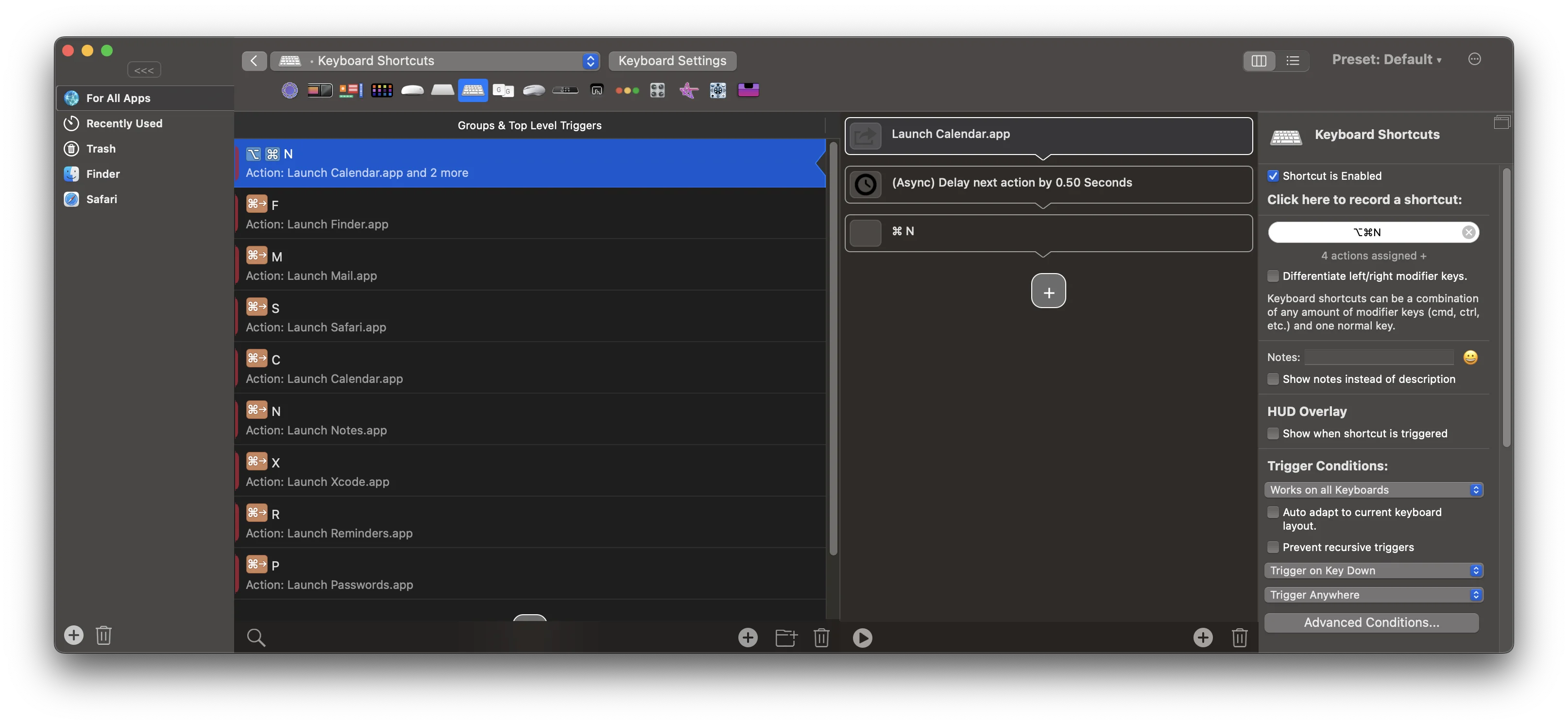
For years, the standard recommendation for adding custom gestures to macOS has been BetterTouchTool (BTT). BetterTouchTool is an extremely powerful utility that lets you map almost any trackpad gesture, keyboard shortcut, or mouse action to custom system commands.
To configure browser tab switching in BetterTouchTool, you typically follow these steps:
- Create a profile specifically for your browser (e.g., Google Chrome).
- Add a trigger for a "3-Finger Swipe Left".
- Assign the action "Send Keyboard Shortcut" and map it to Cmd + Shift + [.
- Add another trigger for a "3-Finger Swipe Right".
- Assign the action "Send Keyboard Shortcut" and map it to Cmd + Shift + ].
- Configure system gesture override rules so that BTT's three-finger swipe doesn't trigger the macOS Spaces swipe at the same time.
While BTT is a versatile tool, it acts more as a manual workaround than a polished, native tab-switching solution. Setting it up can take hours of tweaking settings, mapping keys, and resolving conflicting macOS system gestures. Additionally, because BTT's tab switching only works by simulating single keyboard shortcuts, it lacks continuous gesture tracking - you'll need to lift your fingers and swipe for every individual tab change, rather than sliding smoothly across several tabs like you can in TabSwipe.
Built-in Tab-Switching Methods
Even though trackpad gestures aren't supported natively, macOS and browsers have built-in methods for tab switching. If you are operating without third-party utilities, these are your default choices:
1. Standard Keyboard Shortcuts
Most browsers on Mac (Chrome, Safari, Firefox, Brave, and Edge) support standard key combinations to cycle through your tabs:
- Cmd + Option + ← / →: Move to the previous or next tab.
- Cmd + Shift + [ / ]: An alternative standard shortcut mapping.
- Ctrl + Tab / Ctrl + Shift + Tab: Cycle forward or backward through tabs.
- Cmd + 1 through 8: Jump directly to specific tabs by position, and Cmd + 9 to jump to the very last tab.
2. Safari's Built-in Pinch Gesture
Safari features a unique, native gesture: pinch-to-overview. If you perform a two-finger pinch on your trackpad, Safari zooms out to reveal a visual grid of all your open tabs. You can then slide your fingers to hover over a tab and release to select it. While visual, this gesture acts more like a workspace overview than a quick tab-switching toggle.
Comparison: Default, BTT, and TabSwipe
Here is how the default trackpad options, BetterTouchTool configuration, and TabSwipe compare for browser tab switching:
| Feature | Built-in macOS | BetterTouchTool | TabSwipe |
|---|---|---|---|
| Three-finger Tab Swipes | No | Yes (requires setup) | Yes |
| Continuous Swiping | No | No (only 1 tab per swipe) | Yes |
| Bookends | No | No | Yes |
| Haptic Feedback Clicks | No | Yes (requires custom scripts) | Yes |
| Config Complexity | Zero | High (manual presets) | Zero (one click setup) |
| Idle CPU Usage | 0% | Moderate (global hook) | 0% (focused hook) |
| Price Model | Free | $15 - $25 | $13 |
Why macOS Doesn't Support This Natively
To understand why macOS doesn't natively map a trackpad gesture to tab switching, you have to look at how Apple designs its interaction system. Apple treats apps and virtual desktops (Spaces) as system-level elements, but treats tabs as application-level elements.
Natively, macOS reserves three-finger and four-finger swipes for OS-level actions:
- Three or Four-finger horizontal swipes are mapped to switching between full-screen apps and virtual desktops (Spaces).
- Three or Four-finger vertical swipes are reserved for Mission Control (viewing all active windows) or App Exposé.
- Two-finger horizontal swipes are reserved inside browsers for navigating history (going back and forward in a page's history).
Because these system gestures are hardcoded or managed globally in System Settings, Apple avoids assigning standard multi-finger gestures to application-level interfaces like browser tabs. Doing so would create immediate conflicts. For example, if a three-finger swipe switched browser tabs, how would you switch to your adjacent full-screen code editor? This philosophy keeps the operating system consistent, but forces power users to rely on keyboard shortcuts or complex third-party tools to navigate tabs efficiently.
Why Traditional Methods Fall Short
If these built-in shortcuts and gestures already exist, why do so many developers, designers, and office workers look for trackpad gestures? There are three main reasons:
1. The Context-Switching Tax
Using keyboard shortcuts requires you to lift your hand off your mouse or trackpad, position your fingers on a modifier key combination, fire the shortcut, and then return your hand back to the trackpad. Over hundreds of interactions a day, this micro-context-switch accumulates noticeable friction.
2. Focus Interruption from Visual Overlays
Visual overlays like Safari's pinch overview or Chrome's search-tabs menu interrupt your focus. A visual zoom-out breaks your direct layout flow, forcing your eyes to readapt to a grid of page cards instead of letting you glide continuously from tab to tab.
3. Discrete vs. Fluid Navigation
Keyboard shortcuts are also discrete, meaning they lack granularity. You either press a key to jump one tab or you don't. A true fluid gesture allows you to "peep" at the adjacent tab, scroll past three tabs in one smooth swipe, and feel exactly where you are landing.
Browser-Specific Workflows
Different browsers manage tabs and gesture events in slightly different ways. Below are quick highlights for the two most popular browsers on Mac.
Google Chrome
Google Chrome is the most popular browser on Mac, but it has notable conflicts with trackpad gestures. Natively, a two-finger horizontal swipe in Chrome is bound to page navigation (back and forward). If you try to map gestures without a browser-aware utility, your tab-switches will often conflict with back/forward navigation, or fail entirely when you are viewing internal PDF documents or chrome:// pages. Read our dedicated How to Switch Chrome Tabs with a Trackpad on Mac guide for a detailed workaround.
Using Chrome on Mac?
Read our complete guide to setting up and optimizing Chrome-specific tab-switching gestures.
Apple Safari
As Apple's native browser, Safari integrates tightly with macOS. While it lacks native three-finger horizontal tab switching, it does support two-finger swiping to cycle through tab history. Introducing third-party gestures requires overriding specific Accessibility contexts to ensure Safari's fluid zooming animations don't conflict with tab movement. For a deep dive into Safari configuration, see our How to Switch Safari Tabs with a Trackpad on Mac tutorial.
Using Safari on Mac?
Learn how to map gestures without breaking Safari's native animations and overview panels.
Frequently Asked Questions
Can I switch tabs using macOS hot corners or mouse gestures?
Yes, utilities like BetterTouchTool let you assign hot corners to keyboard shortcuts (like Cmd+Option+Right), but this is usually slower than using direct multi-finger swipes or keyboard shortcuts.
Will custom gestures break macOS Mission Control and Spaces swipes?
Yes. TabSwipe uses three-finger swipes, so Mission Control and Spaces move to four fingers — onboarding walks you through it in about a minute. Three-finger taps are unaffected, so opening links in new tabs and closing tabs still work.
Does horizontal tab swiping work on Windows?
Yes, some Windows laptops with precision drivers support three-finger swipes to switch tabs natively inside Microsoft Edge or Google Chrome. TabSwipe was built to bring this exact smooth, productivity-boosting experience to macOS.
Looking to discover more utilities to optimize your trackpad workflow? Read our roundup of the Best Mac Trackpad Apps to boost your day-to-day productivity.