
Apple's MacBook trackpad is widely considered the industry standard for hardware precision. Built with solid-state force sensors and magnetic feedback, it acts as a primary input device for macOS. However, out of the box, Apple limits your trackpad customization options to a few basic presets in System Settings.
To unlock the full potential of your hardware, third-party developers have built incredibly focused utilities. In this roundup, we will examine the five best Mac trackpad applications available in 2026, comparing their features, complexity, and workflow value.
Looking specifically for tab-switching gestures? Read our in-depth guide: How to Switch Browser Tabs with a Trackpad on Mac.
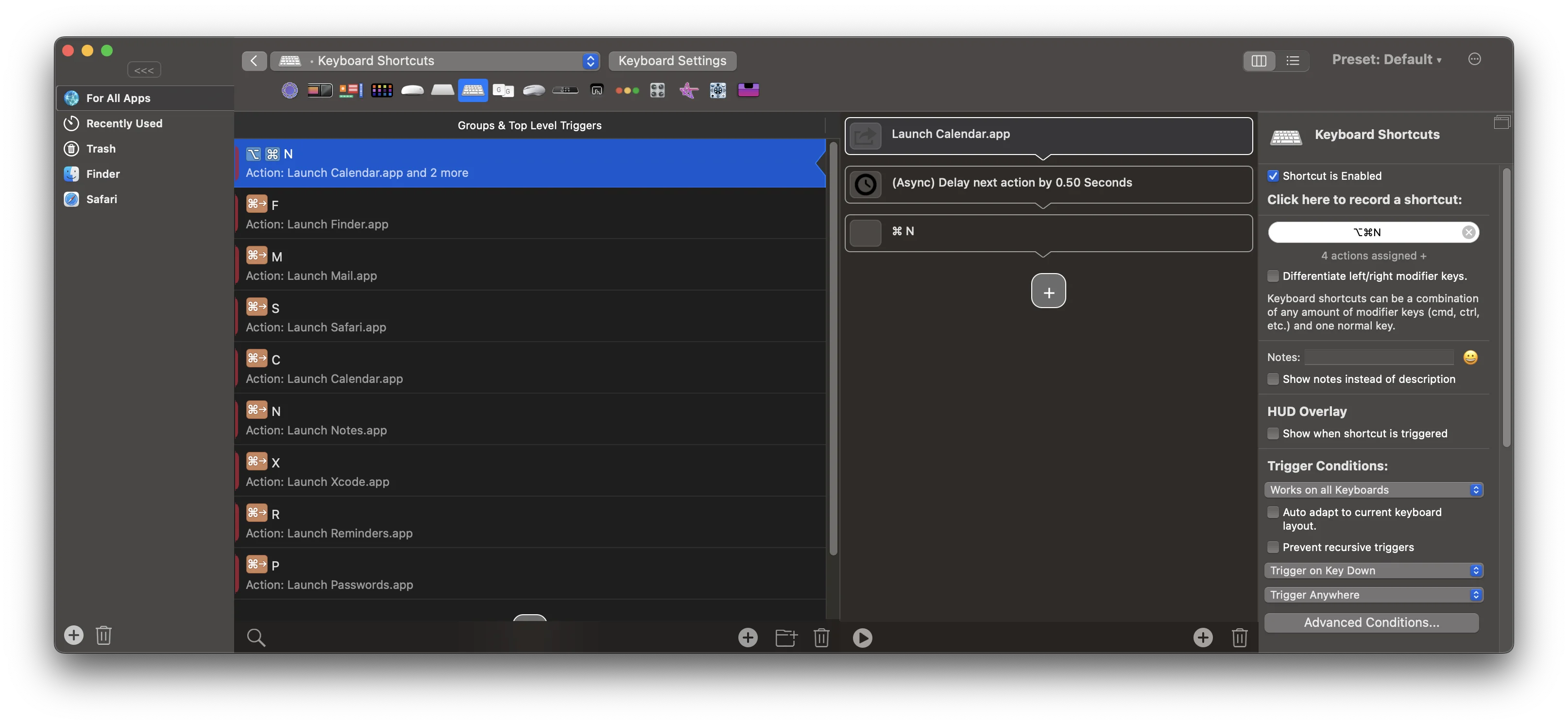
BetterTouchTool is the most feature-rich automation utility for macOS. It is a blank canvas that allows you to trigger custom keystrokes, launch shell scripts, snapping layouts, and manage window tiles using hundreds of custom trackpad gestures.
- Pros: Endless customization. Supports custom drawing gestures, custom Touch Bar layers, Siri remote mapping, clipboard managers, and keyboard macro mapping.
- Cons: High learning curve. Configuring simple actions requires working through nested option screens. Pricing model includes major upgrade charges ($15 for 2-year updates, $25 for a lifetime license).
- Best For: Power users looking to automate complex multi-stage workflows across macOS.
2. TabSwipe$12.99
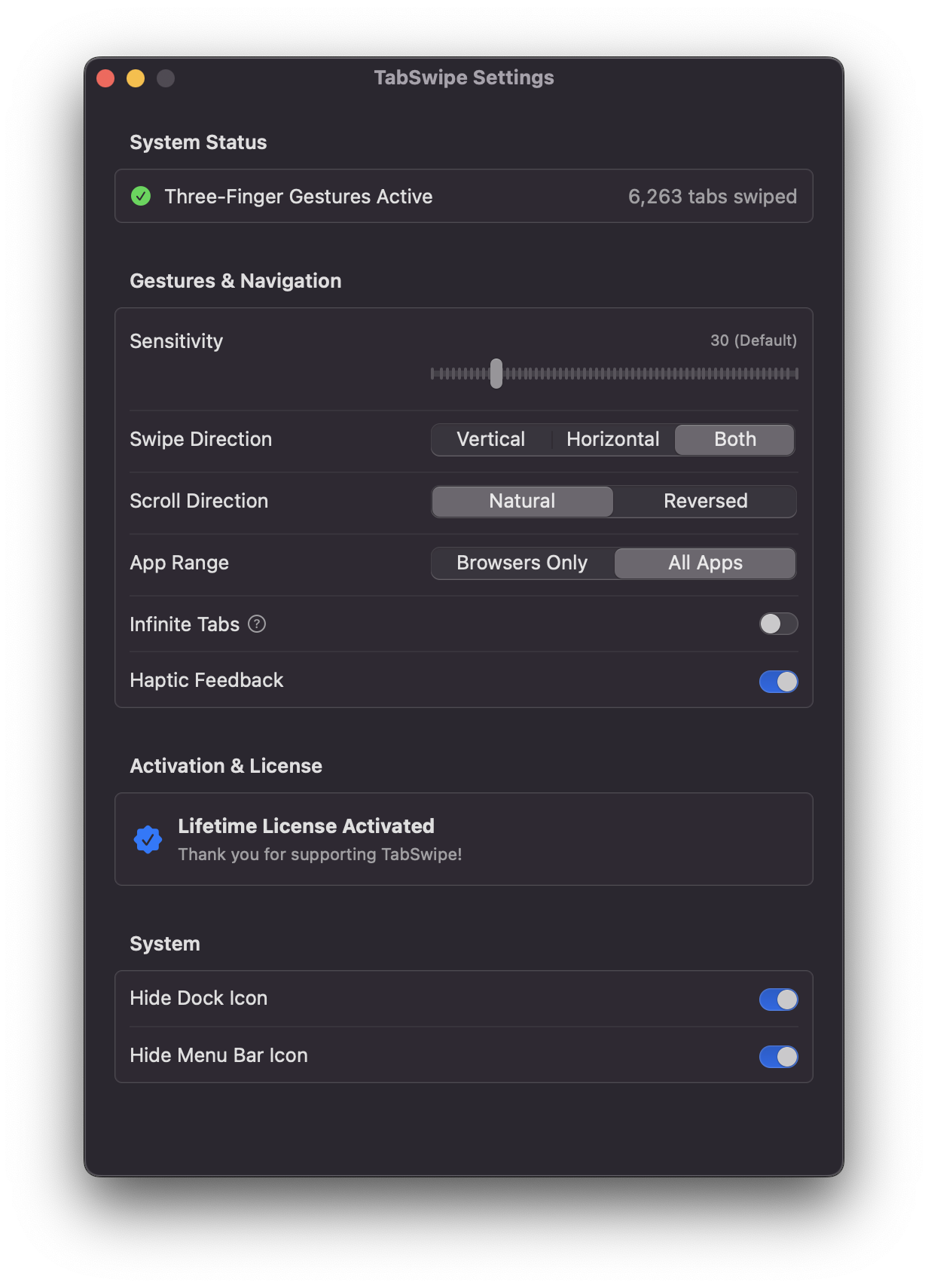
TabSwipe is purpose-built for one thing: making browser tab switching on a Mac feel as natural as swiping between pages.
Unlike tools that trigger a single shortcut per gesture, TabSwipe tracks your fingers continuously, allowing you to glide across multiple tabs in a single swipe. It also includes Tab Bookends, bringing a sense of place to tab switching. Your tab list now has clear endpoints, so swiping feels deliberate rather than like an endless carousel.
- Pros: Zero configuration, continuous swipe tracking, Bookends for improved navigation and orientation, native trackpad haptics, lightweight, and a one-time lifetime license.
- Cons: Focused exclusively on browser tab switching rather than broader system automation.
- Best For: Mac users who want the most refined, trackpad-native browser tab switching experience.
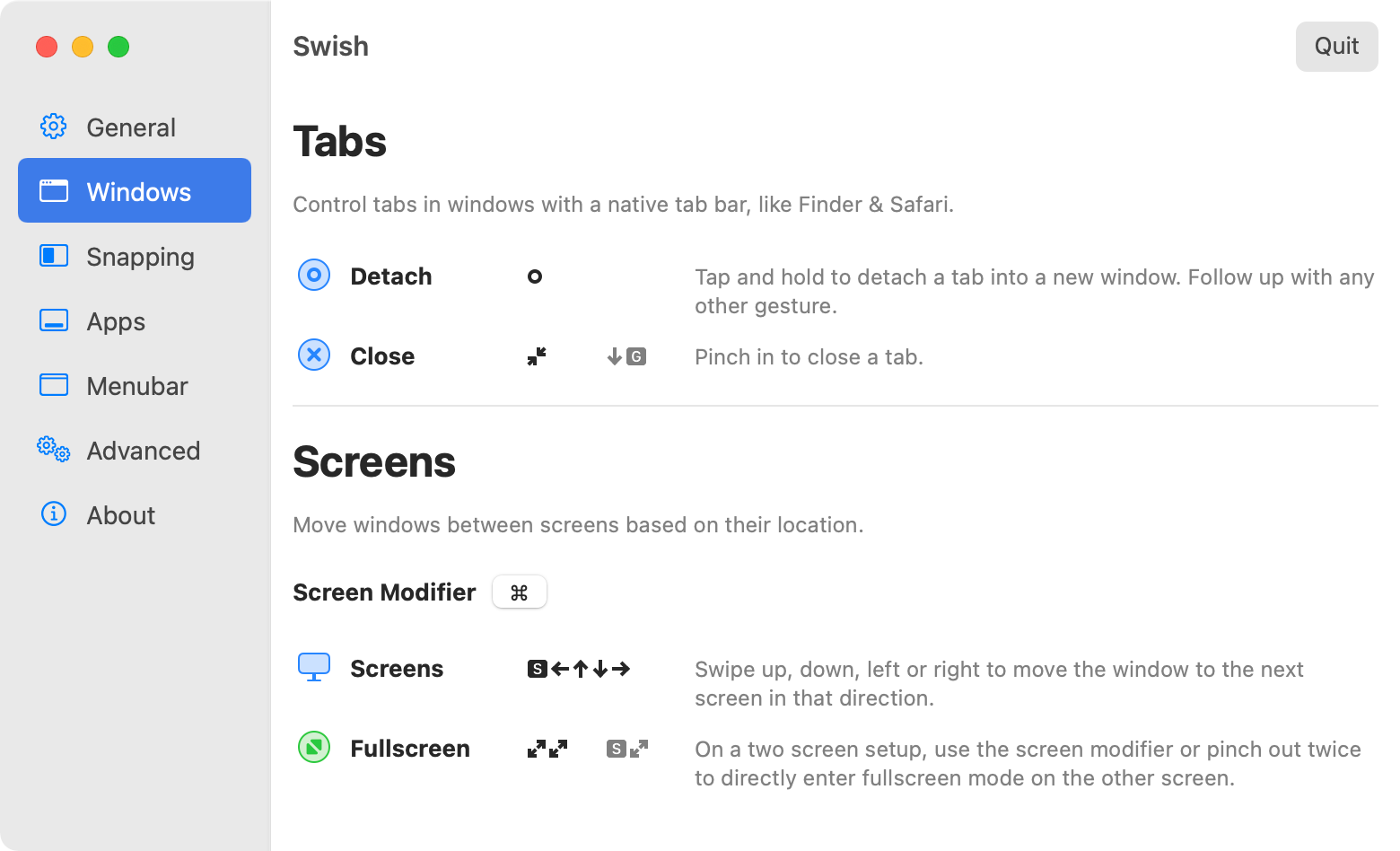
If TabSwipe is the dedicated tool for browser tabs, Swish is the dedicated tool for window management. Swish introduces physical swipes, pinches, and hover gestures to control, snap, and arrange application windows.
Instead of clicking window title buttons, Swish lets you swipe down to minimize, swipe up to maximize, or pinch to close. It features native-feeling animations and physics that integrate beautifully with recent macOS releases.
- Pros: Excellent native-feeling trackpad animations. Clean, minimal configuration UI. Reliable window snapping.
- Cons: Lacks general macro/shortcut customization options. Focused strictly on window placement.
- Best For: Laptop users who want to arrange and snap windows quickly without using keyboard hotkeys.
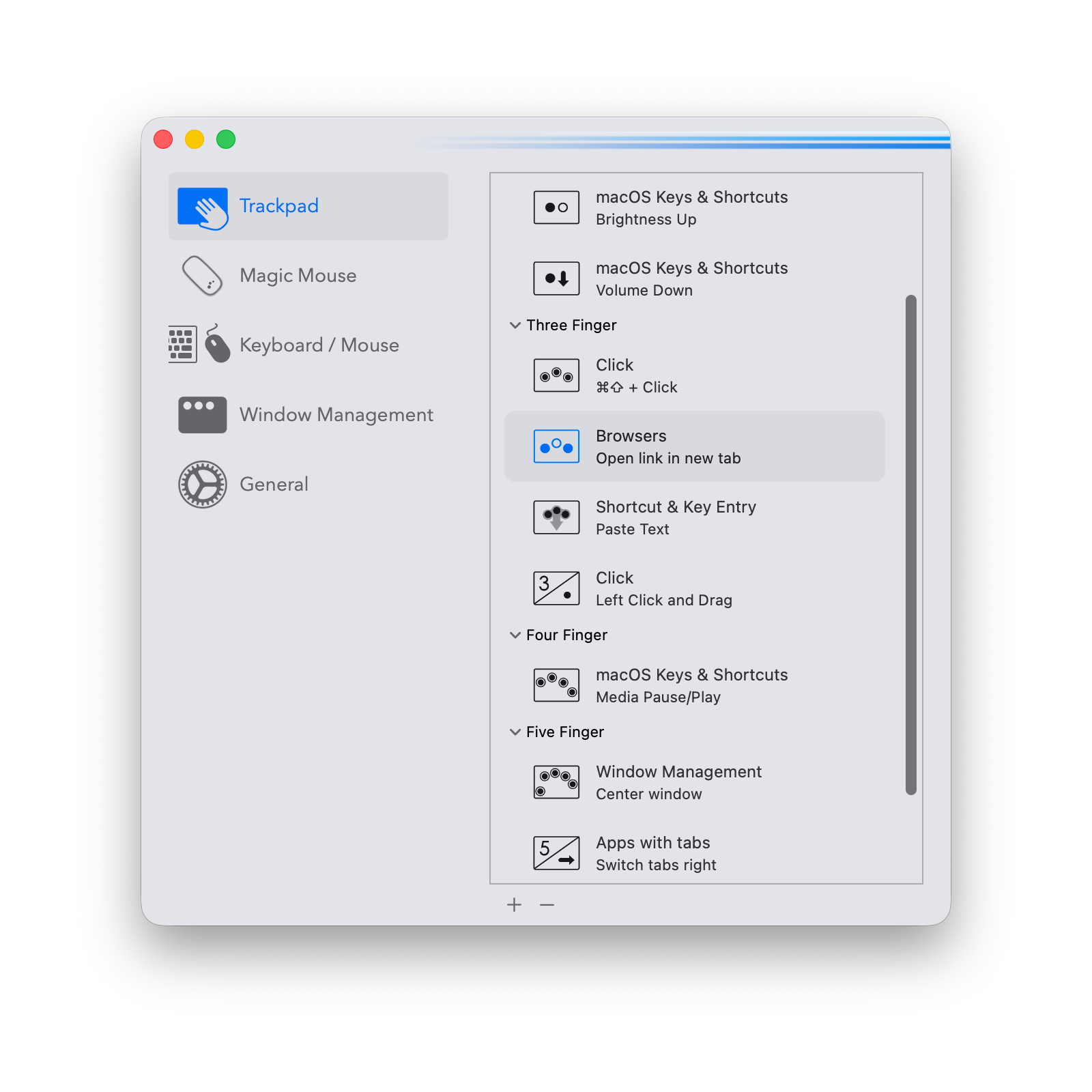
Multitouch acts as a lighter, more visual alternative to BetterTouchTool. It allows you to bind specific multi-finger trackpad gestures to custom actions (like cycling window splits or triggering standard keystrokes).
- Pros: Much simpler visual configuration interface than BetterTouchTool. Lightweight system footprint.
- Cons: Lacks the advanced macro nesting power of BTT. Does not support continuous sliding gesture tracking.
- Best For: Users looking to add a few simple custom gestures to their workflow without BTT's configuration overhead.
5. TactileFree
While most Mac trackpad utilities focus on gestures, Tactile focuses on feedback. It adds customizable haptic responses to everyday trackpad interactions, making clicks, gestures, and navigation feel more tactile and satisfying without changing how your Mac works.
You can fine-tune the strength and timing of haptic feedback for different actions, creating a more responsive trackpad experience that feels closer to interacting with physical controls.
- Pros: Customizable haptic feedback. Lightweight. Improves the feel of everyday trackpad interactions.
- Cons: Doesn't add new gestures or productivity features. Requires a Mac with a Force Touch trackpad.
- Best For: Mac users who want a more tactile, responsive trackpad experience.
Summary: Which Trackpad App Should You Choose?
Here is a side-by-side feature summary for the top Mac trackpad applications:
| Application | Primary Focus | Setup Complexity | Continuous Gestures | License Price |
|---|---|---|---|---|
| TabSwipe | Tactile browser tab switching | Zero config | Yes (continuous) | $12.99 once |
| BetterTouchTool | System-wide macro automation | High setup | No (discrete macros) | $15 - $25 |
| Swish | Physical window snapping & sizing | Low setup | Yes (physics-based) | $16 once |
| Multitouch | Simplified gesture bindings | Moderate setup | No (discrete keybinds) | $14 once |
| Tactile | Haptic feedback customization | High Setup (GitHub) | No | Free |
Ready to optimize your workflow? Download TabSwipe's free trial to experience native tab-switching gestures first hand.
Download TabSwipe, swipe through a few tabs, and decide for yourself.
No account needed to try it. 3-day free trial. $12.99 once when you are ready.
macOS 13 Ventura or later · Apple Silicon · No subscription